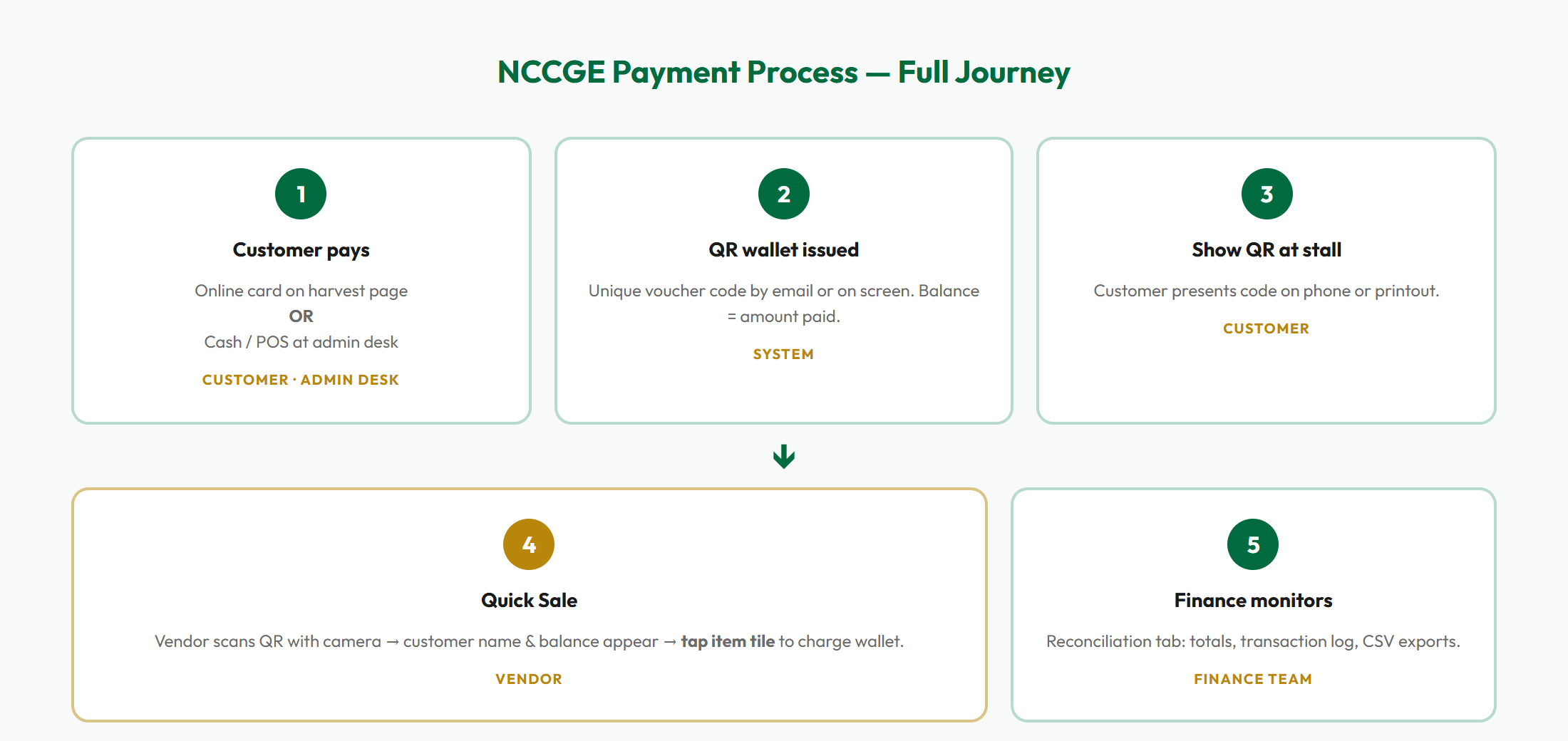
NCCGE has implemented a digital payment layer for Harvest & Bazaar 2026. Community members pay online or at an admin desk, receive a QR wallet voucher for the amount paid, and spend that credit at vendor stalls. All online card payments are processed by Stripe, a regulated payment service provider.
Finance must treat these as separate streams for reporting.
| Stream | Page | Payment | Creates QR wallet? |
|---|---|---|---|
| Harvest / Bazaar catalogue | harvest.html | Stripe Checkout | Yes |
| Flexible wallet top-up (new) | harvest.html → New top-up | Stripe Checkout | Yes (new voucher) |
| Top up existing wallet | harvest.html → Top up existing | Stripe Checkout (from £1) | No — adds to same voucher |
| Pay from existing wallet | harvest.html → Checkout → Pay with my QR wallet | No new money — deducts existing balance | No — spends same voucher; items become pre-paid |
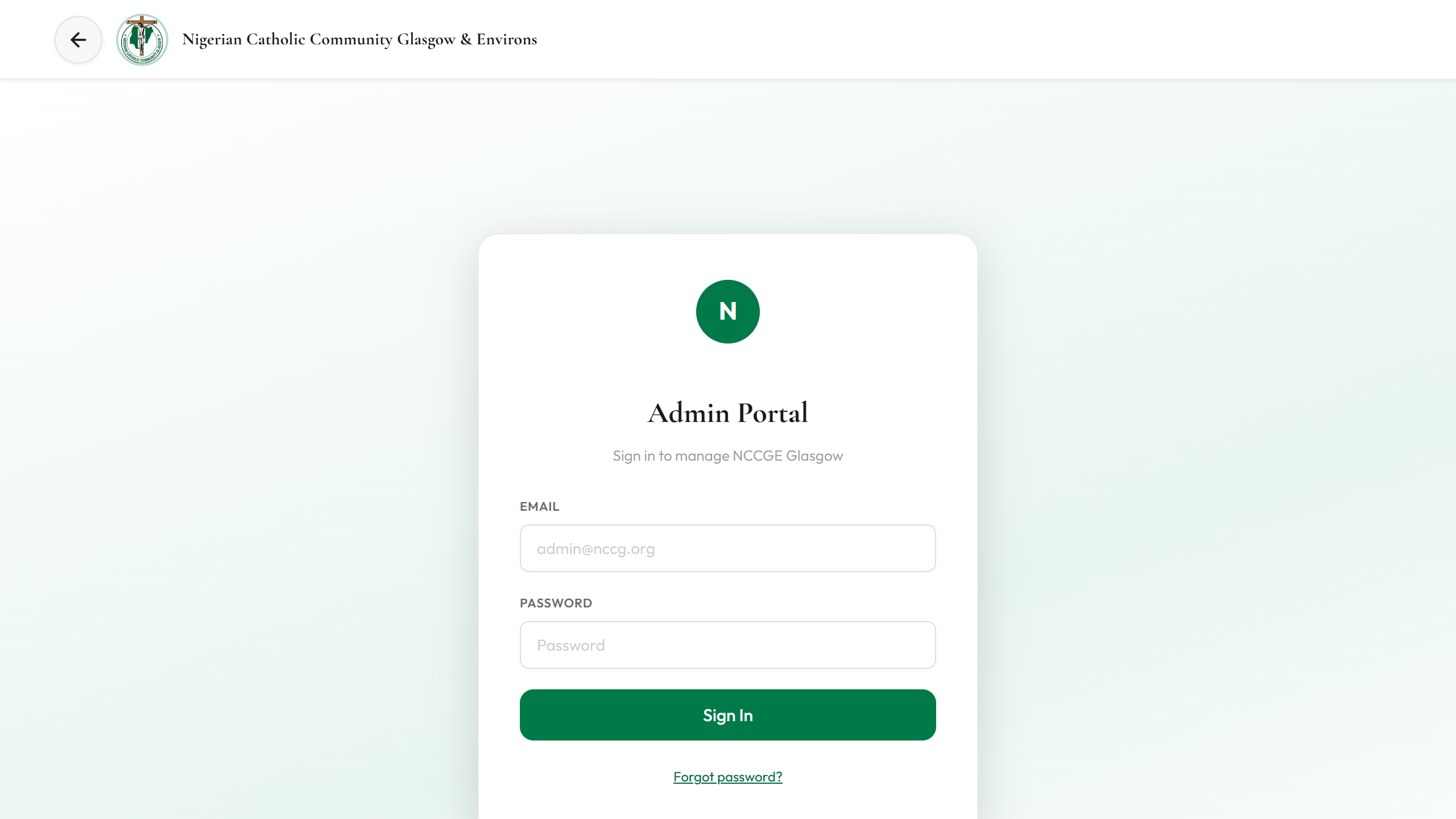
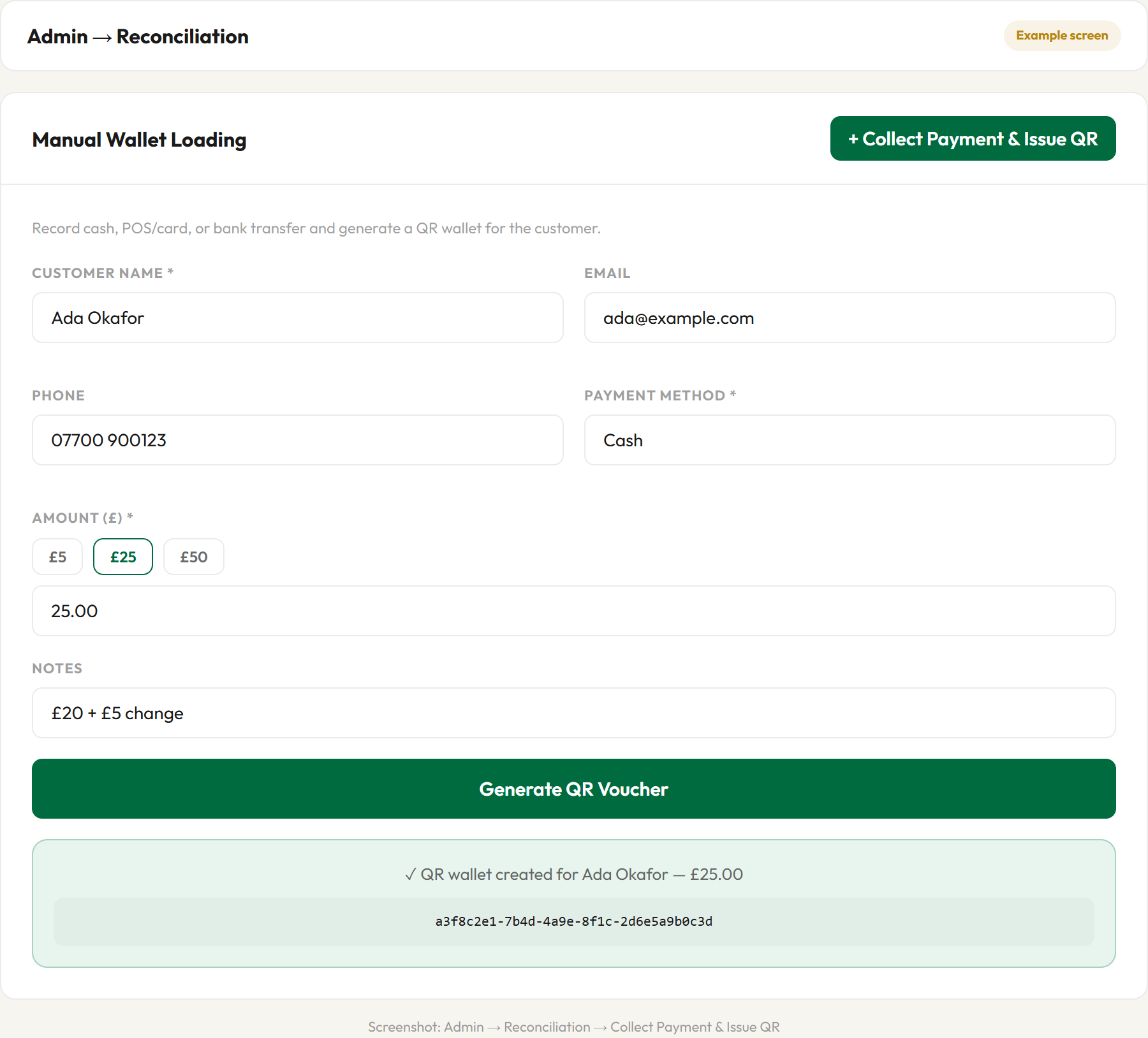
| On-site manual collection | admin.html → Wallet Top-Up | Cash / POS / transfer | Yes (or top-up existing) |
| Virtual load (pending payment) | admin.html → Wallet Top-Up | Pending until confirmed | Yes — share QR now; spending blocked until confirmed |
| Donations | donate.html | Stripe card | No |
| Brochure adverts | brochure-booking.html | Stripe | No |
A QR wallet is prepaid event credit for Harvest & Bazaar spending. It is identified by a unique secure token (UUID). It is not a bank account or regulated e-money product.
| Trigger | Process |
|---|---|
| Online Stripe — new wallet | Customer pays → Stripe confirms → webhook creates wallet with paymentStatus: confirmed |
| Online Stripe — top up existing | Customer enters voucher code on harvest.html (from £1) → Stripe confirms → webhook adds to same wallet; QR unchanged |
| Admin — payment received | Staff records cash/POS/transfer → Generate QR → wallet active immediately |
| Admin — virtual load | Staff issues QR for customer who cannot self-serve → share via email/WhatsApp → Confirm payment received when money collected or bank transfer verified |
| Admin — top up existing | Paste customer voucher code → add any amount (from £1) → confirmed or virtual pending |
Wallet credit leaves the system in two ways. Both are logged and appear in Reconciliation.
| Path | Where | What happens |
|---|---|---|
| A. Stall redemption | vendor.html Quick Sale (or redeem.html) | Vendor scans QR, taps item → balance deducted immediately |
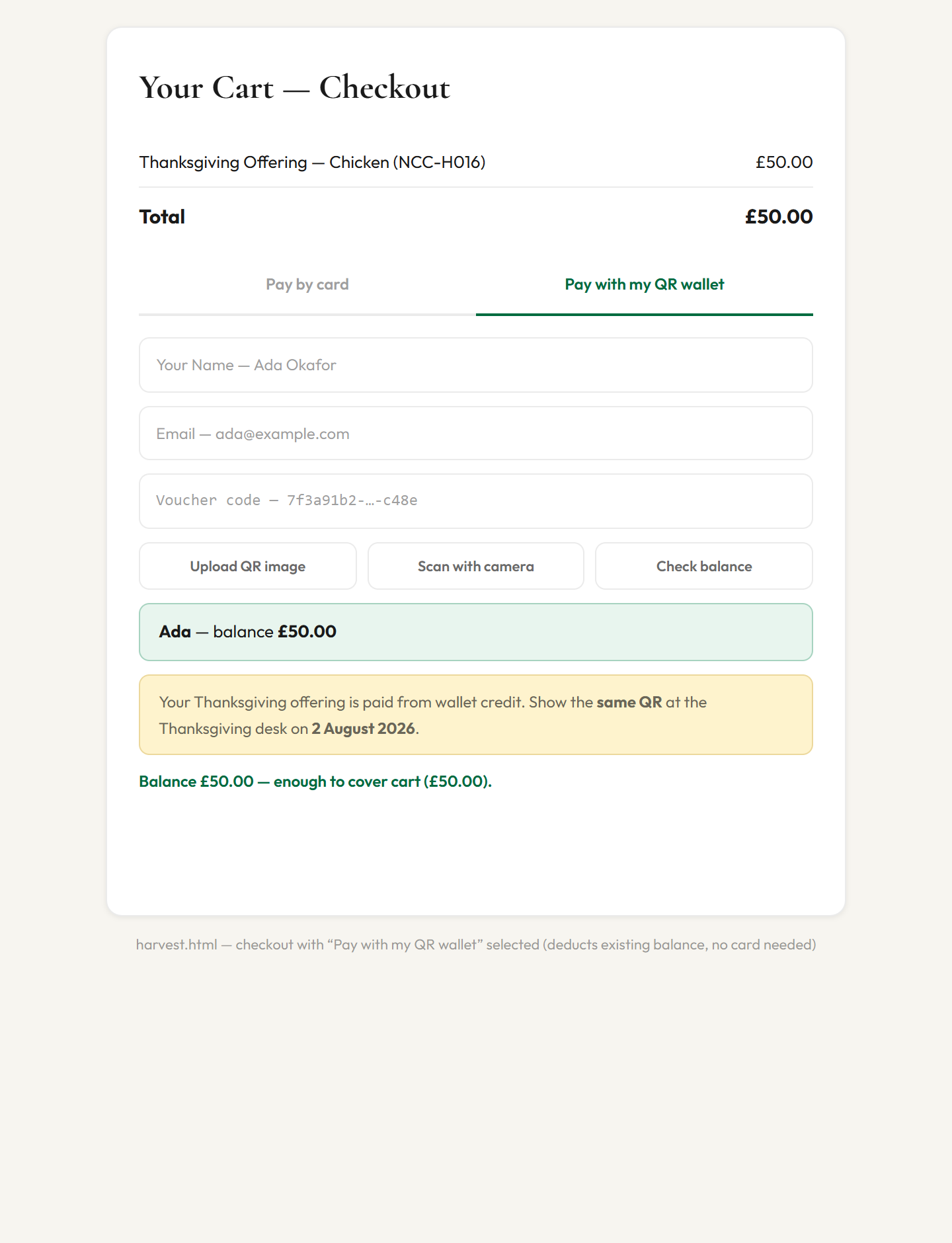
| B. Online wallet checkout | harvest.html cart → Pay with my QR wallet | Balance deducted online; items recorded as pre-paid on the wallet; collected at stall later with no second deduction |
fulfill_prepaid), not a second revenue movement. Never count both.
| Field | Meaning |
|---|---|
| token | Unique voucher code (UUID) |
| amountTotal | Original amount loaded |
| amountRemaining | Current spendable balance |
| paymentStatus | confirmed (spendable) or pending (virtual issue — blocked at stalls) |
| status | active → used (when balance = 0 and no unfulfilled pre-paid items remain) |
| transactions[] | Redemptions, top-ups, online purchases, and pre-paid fulfillments (types topup, redemption, purchase, fulfillment) |
| purchases[] | Items paid online from wallet credit, each flagged fulfilled: false until collected at the stall |
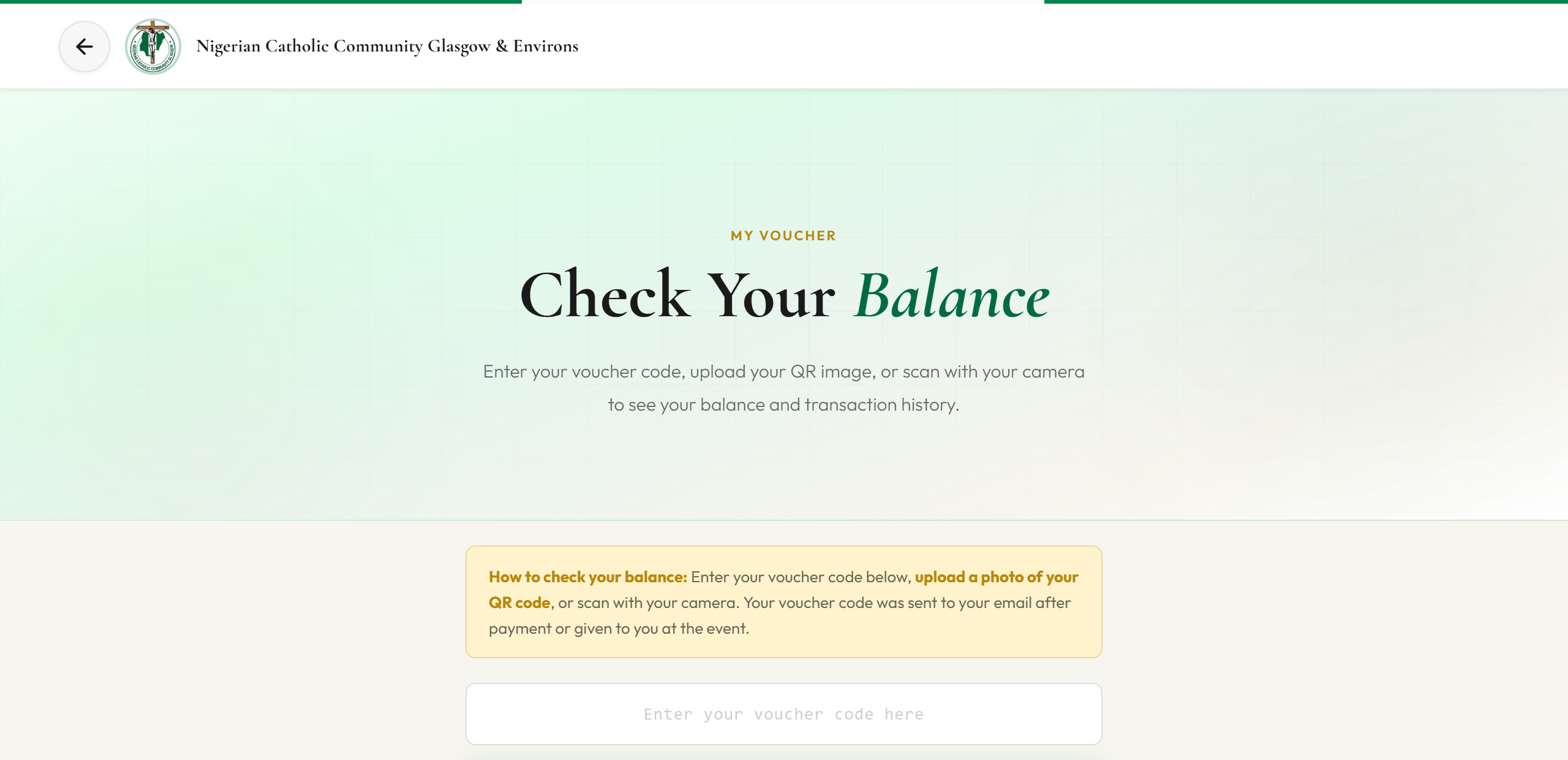
Customers receive both a QR code and a voucher code (UUID) on the payment success page and by email. The voucher code is used at nccglasgow.org.uk/voucher.html to check balance.

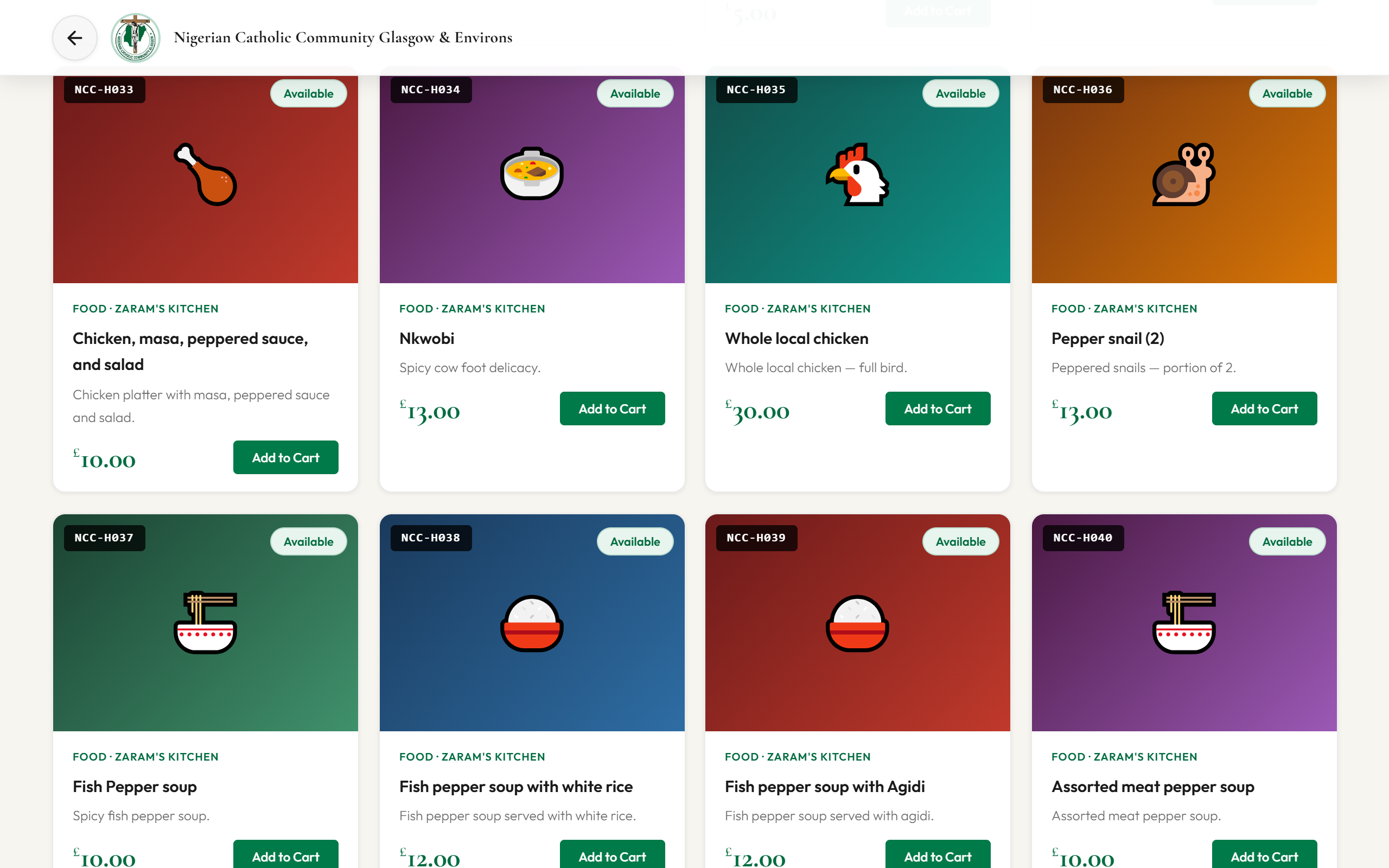
Customers who already hold wallet credit — for example after loading £50 — can buy catalogue items (including Thanksgiving offerings) without a second card payment:
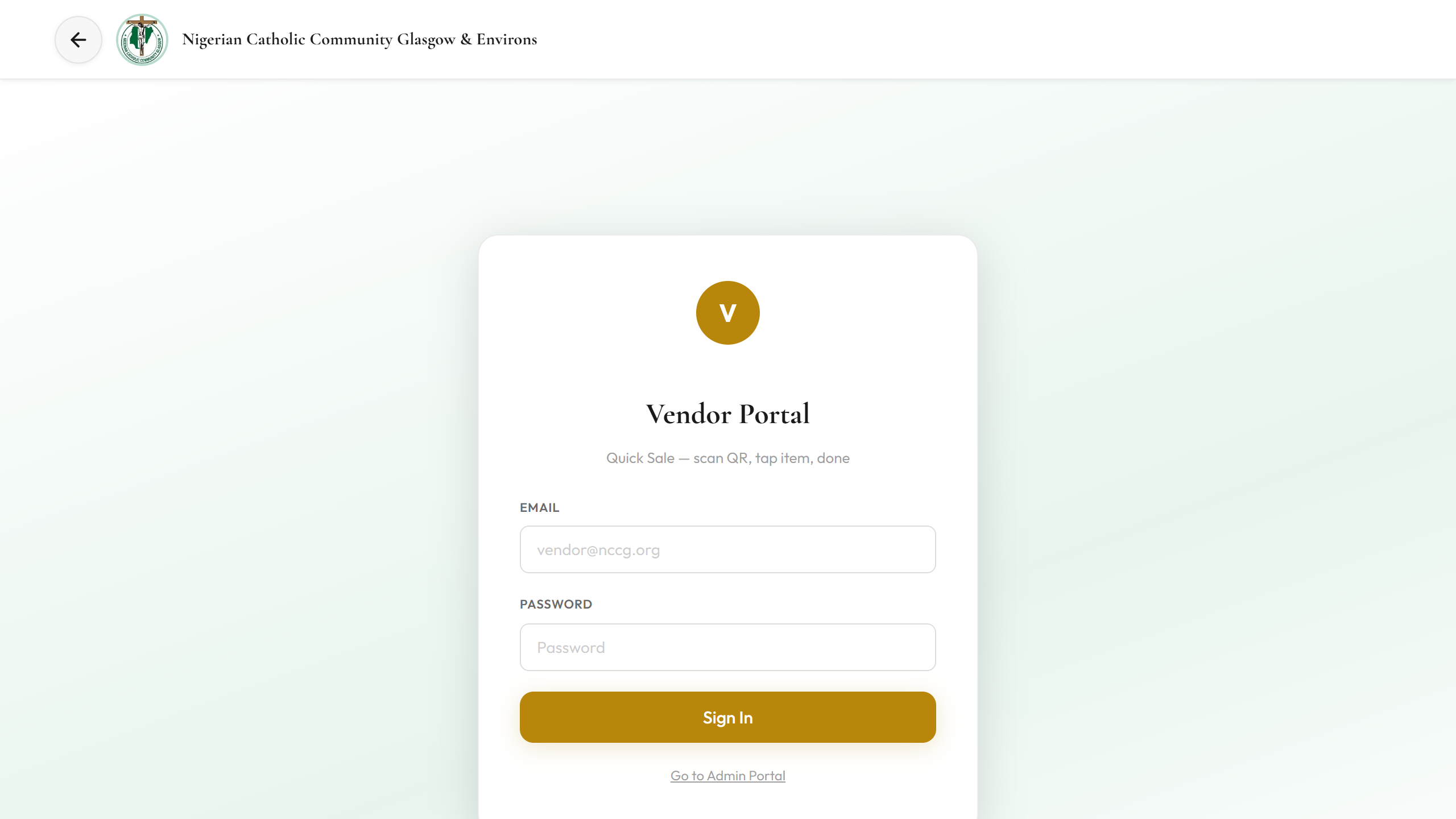
Portal: nccglasgow.org.uk/vendor.html | Stall guide: NCCGE-Vendor-Stall-Guide.html
| # | Action | System |
|---|---|---|
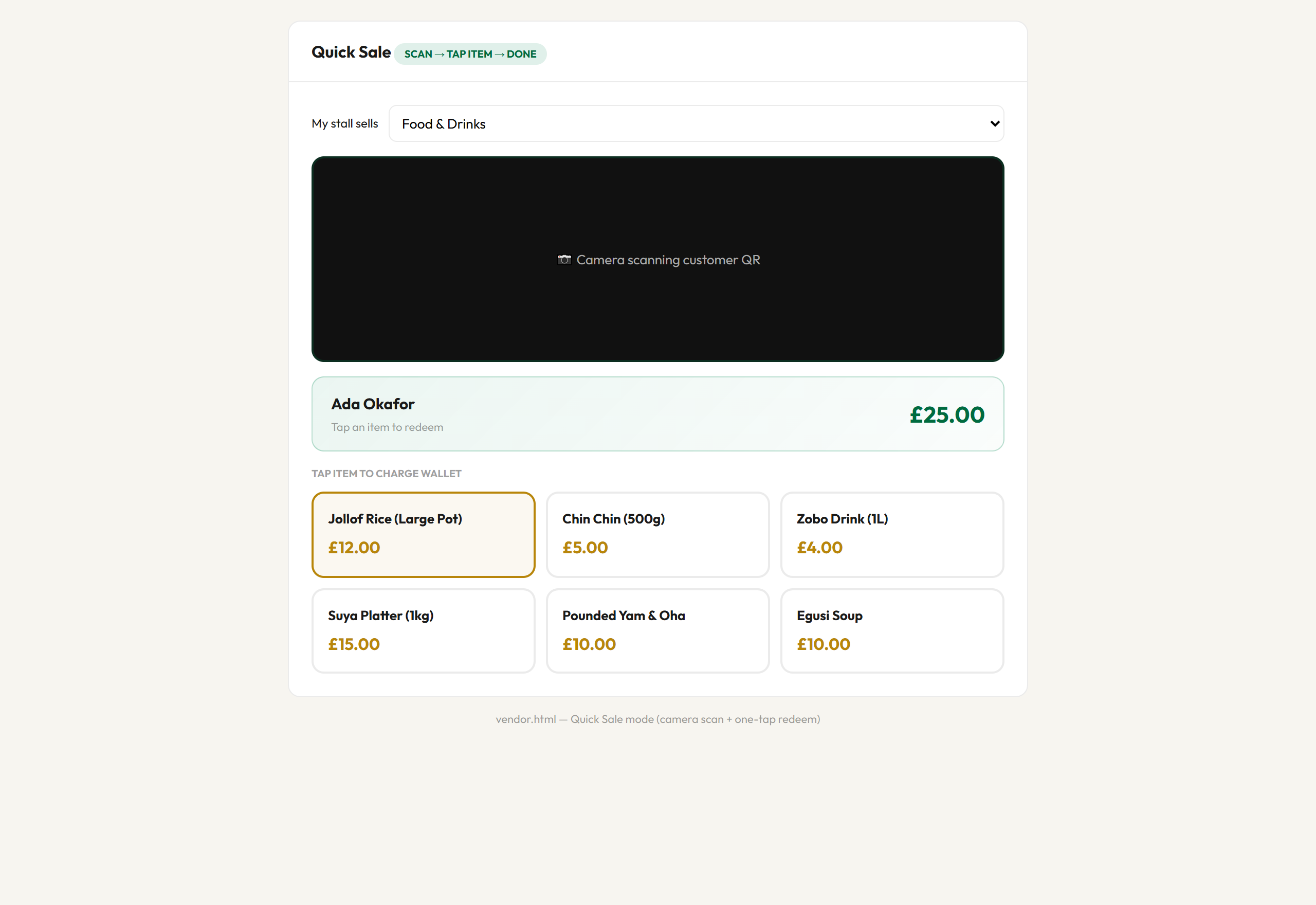
| 1 | Sign in → Quick Sale tab | Camera starts; set My stall sells |
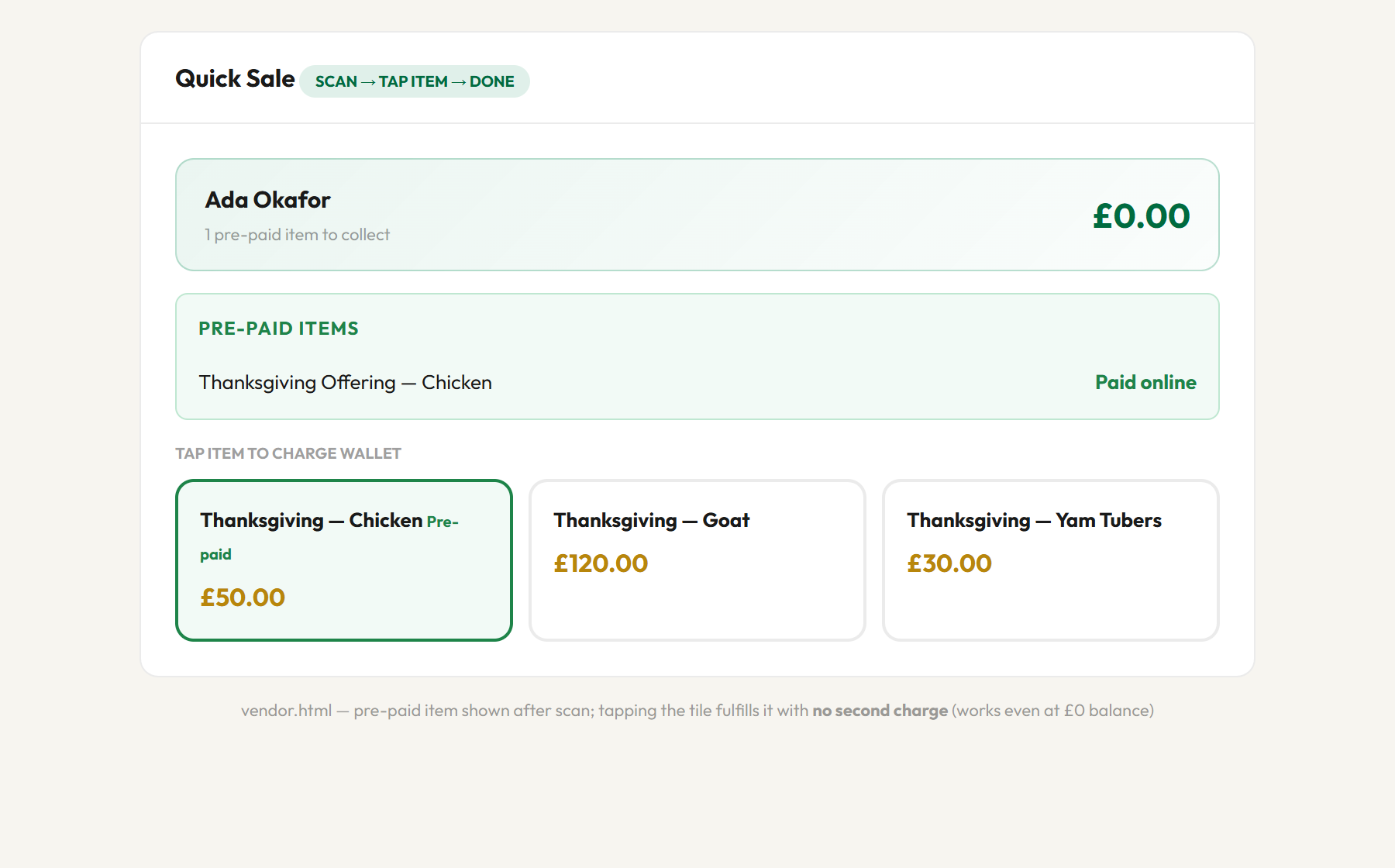
| 2 | Scan customer QR | vendor-validate-qr — name + balance shown; Pre-paid items listed in green if the customer paid online |
| 3 | Tap item tile | redeem-qr — price from catalogue (server-validated). If the item is pre-paid, it is fulfilled at £0 instead of deducted |
| 4 | Give goods → Next customer | Balance refreshed; auto-clear if £0 and nothing pre-paid remains |
| Element | Detail |
|---|---|
| Stall filter | food / fashion / craft / thanksgiving / all — saved per device |
| Camera | html5-qrcode; accepts UUID, voucher URL, redeem URL |
| Pre-paid items list | Green box after scan showing items paid online but not yet collected |
| Item tiles | Disabled (grey) if balance < price — unless pre-paid (green badge, always tappable) |
| Advanced | Manual look-up, verify-only panel, manual redeem, catalogue dropdown |
| Action | Logged amount | Tables |
|---|---|---|
| Scan / look up | £0 (display only in Quick Sale) | vendor_redemptions (validate), audit_logs |
| Tap tile / Redeem | Item price | vendor_redemptions (redeem), audit_logs |
| Online wallet checkout | Cart total (deducted online) | vendor_redemptions (wallet_catalog_purchase), audit_logs |
| Tap pre-paid tile / Fulfill | £0 — already paid online | vendor_redemptions (fulfill_prepaid), audit_logs |
| Message | Cause |
|---|---|
| Insufficient balance | Wallet < item price (does not apply to pre-paid items — those always fulfill) |
| Invalid wallet | Bad token, or wallet fully used with no pre-paid items left |
| Scan customer QR first | Redeem before scan |
| Wallet not active / payment pending | Virtual load not yet confirmed — send to admin desk |
Finance monitors: Admin → Vendor Operations; Reconciliation → filter QR redemptions / validations.
Portal: nccglasgow.org.uk/redeem.html | Use when: Admin desk redeems on behalf of a customer (disputes, no vendor device, overflow queue)
| # | Action | System |
|---|---|---|
| 1 | Sign in with admin credentials | Same admin account as admin.html |
| 2 | Turn on camera or paste voucher token | html5-qrcode; accepts UUID, voucher URL, redeem URL |
| 3 | Validate QR Wallet | validate-qr — name, balance, status shown |
| 4 | Select catalogue item and redeem | redeem-qr — server-validated price and balance check |
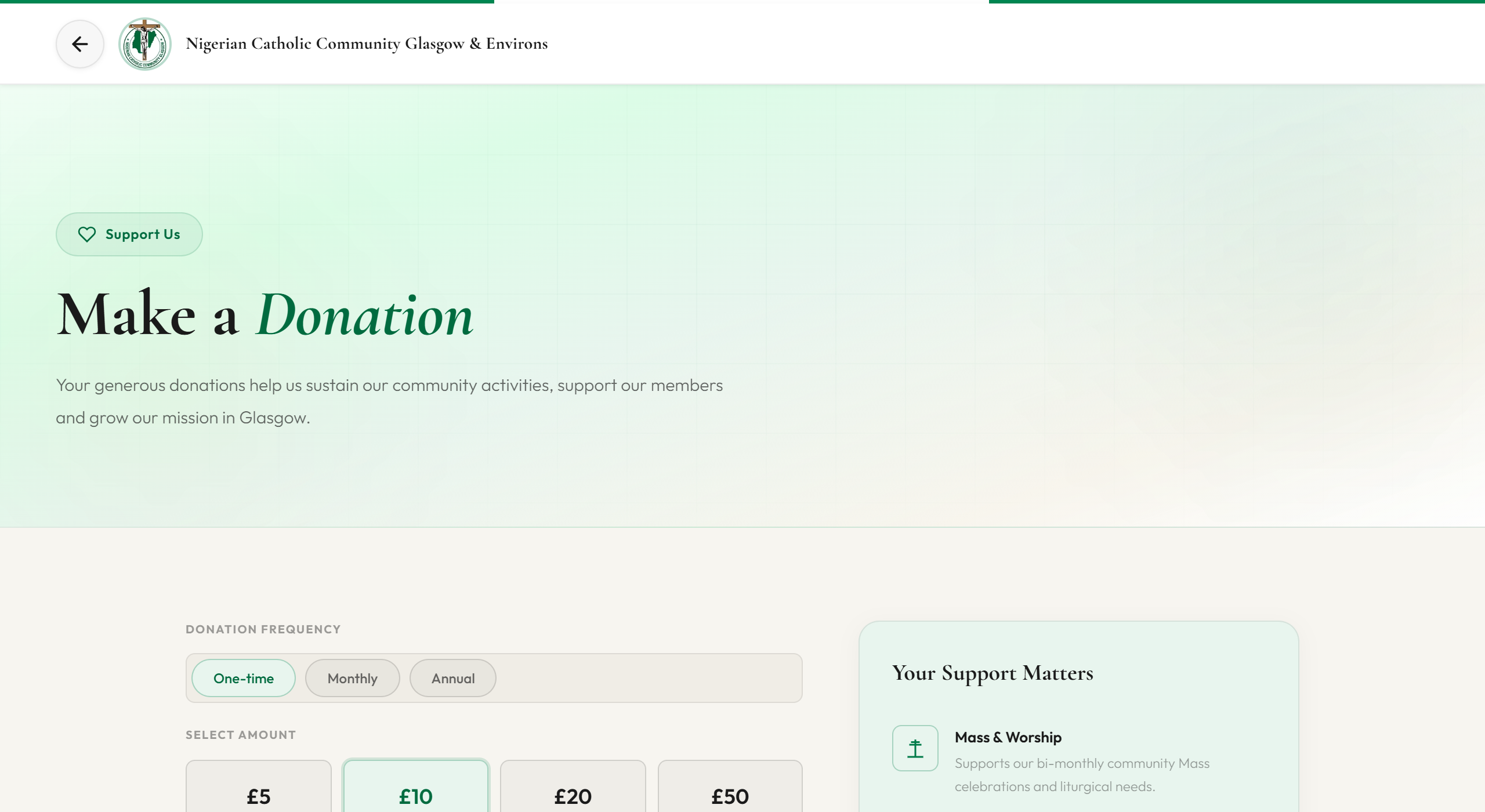
Donations are processed through donate.html — completely separate from QR wallets.
| Feature | Detail |
|---|---|
| Payment | Stripe card on donate page |
| Frequencies | One-off, monthly, quarterly, yearly |
| Gift Aid | Optional; 25% top-up calculated and stored |
| Card statement | NCC DONATION |
| Reporting | Admin → Donations tab → Export CSV |
Admin portal: nccglasgow.org.uk/admin.html
| Tab / Tool | Purpose |
|---|---|
| Wallet Top-Up | Dedicated desk view — manual wallet loading, virtual load, share QR/email/WhatsApp, confirm payment |
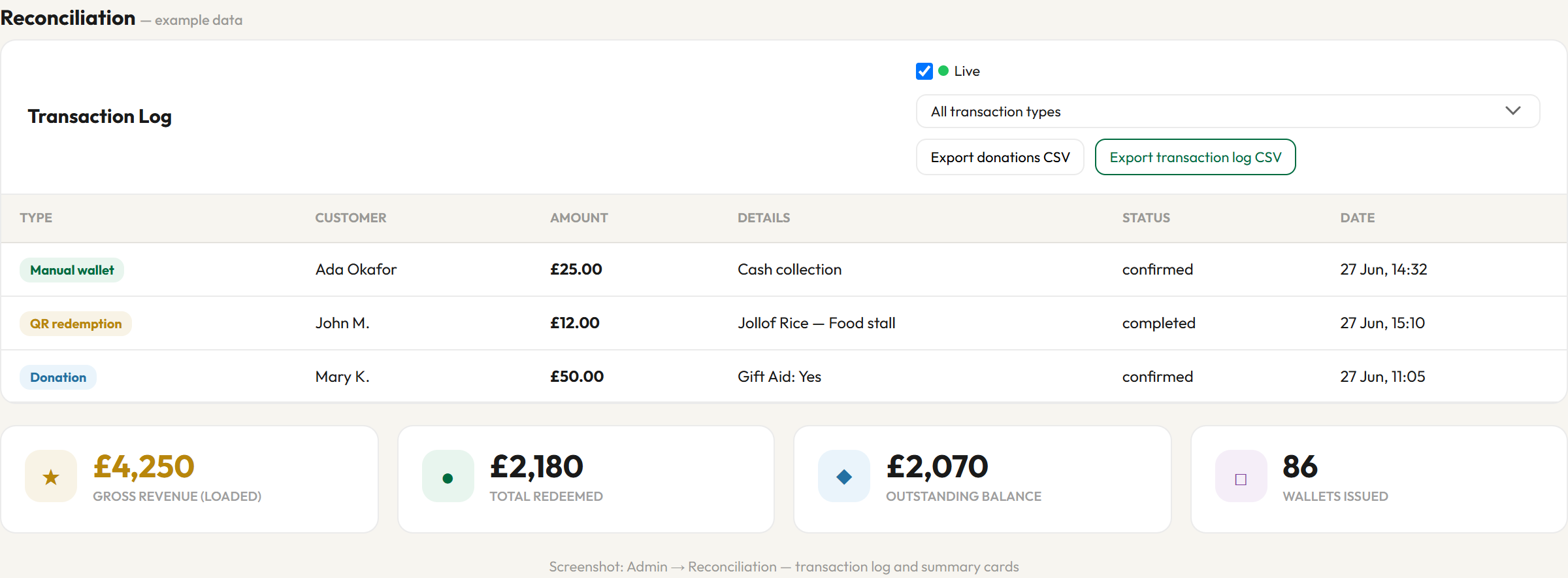
| Reconciliation | Gross Loaded, Redeemed, Outstanding, live transaction log, Export transaction log CSV, Export donations CSV, shortcut to Wallet Top-Up |
| Members / Contacts / Thanksgiving | View submissions, Approve / Reject pending records, Export CSV (admin role and above) |
| Donations | Gift Aid list, search, CSV export |
| Brochures | View bookings and Export CSV |
| QR Wallets (qr-admin.html) | Search any wallet; view balance and history |
| Vendor Operations | Monitor vendor activity |
| Field | Required | Notes |
|---|---|---|
| Issue type | Yes | New wallet or Top up existing |
| Payment mode | Yes | Payment received or Virtual load (pending) |
| Customer name | Yes | — |
| Amount (£) | Yes | Min £1 (new wallet or top-up) |
| Existing voucher code | If top-up | UUID from customer email or voucher.html |
| Payment method | If payment received | Cash, POS, or bank transfer |
| Email / phone | No | Recommended for Email / WhatsApp share |
Membership registrations, Contact Us messages, and Thanksgiving registrations are stored with status pending until reviewed. The submitter sees a success message immediately; only approved records are treated as authorised community data.
| Form | User sees | Admin action |
|---|---|---|
| Membership (register.html) | “Submitted successfully — team will review” | Members tab → Approve or Reject |
| Contact Us (contact.html) | “Message received — team will respond after approval” | Contacts tab → Approve or Reject |
| Thanksgiving (thanksgiving.html) | “Registration received — coordinators will confirm” | Thanksgiving tab → Approve or Reject |
| Metric | Definition |
|---|---|
| Gross Revenue (Loaded) | Total value of all QR wallets issued |
| Total Redeemed | Sum of amounts deducted at vendor stalls plus online wallet checkouts |
| Outstanding Balance | Prepaid credit not yet spent (not lost revenue) |
| Wallets issued | Count of QR vouchers created |
On the Reconciliation tab, finance staff can export:
Available to admin and manager roles. Vendors cannot access these exports.
| Source | Verify in |
|---|---|
| Online card payments | Stripe Dashboard → Payments & Payouts |
| Cash desk loads | admin_cash_collections log vs physical till |
| Donations (Gift Aid) | Donations CSV vs Stripe |
| Redemptions | Reconciliation tab (internal, not bank deposits) |
| Safeguard | What it prevents |
|---|---|
| Server-side price validation | Customers changing catalogue prices |
| Stripe webhook signature verification | Fake payment confirmations |
| Idempotent wallet creation | Duplicate wallets from one payment |
| Balance check before redeem | Over-redemption / overspending |
| Vendor authentication | Unauthorized redemptions |
| Virtual pending wallets | Spending at stalls before payment confirmed |
| Server-side minimum (£1) | Invalid or zero-amount wallet loads |
| Existing voucher validation before checkout | Top-up on invalid or pending wallets |
| Idempotent wallet checkout | Double deduction if the customer retries after a network error |
| Pre-paid fulfillment (£0 redeem) | Charging twice for items already paid online from wallet credit |
| Single-insert form API + duplicate guard | Double records from membership, contact, thanksgiving forms |
| Admin approve/reject on registrations | Unauthorised or fraudulent sign-ups entering operational lists |
| Staff redemption authentication | Unauthorized desk redemptions outside vendor portal |
| Station | Role | Equipment |
|---|---|---|
| Admin desk (×2–3) | Finance-trained admin | Laptop, admin.html → Wallet Top-Up tab |
| Staff redemption desk | Admin / tech support | Laptop or tablet, redeem.html (camera scan) |
| Each vendor stall | Vendor operator | Phone/tablet, vendor.html |
| Finance lead | Reconciliation oversight | Laptop, Stripe access |
| Tech support | QR lookups, disputes | Admin + QR Admin access |
| Issue | Action |
|---|---|
| QR not found | Verify token; check QR Admin |
| Insufficient balance | Show customer voucher.html; escalate to admin desk |
| Payment OK, no QR | Refresh success page; wait 60s; QR Admin lookup |
| No internet at stall | Mobile hotspot; admin desk redeems on behalf |
| Customer lost voucher code | QR Admin lookup; resend from success email; admin desk can look up by token |
| Top-up not showing | Refresh voucher.html; check Stripe webhook; QR Admin for transaction history |
| Virtual wallet won’t scan at stall | Expected until Confirm payment received — check admin_cash_collections status |
| Customer says “I already paid for this item from my wallet” | Scan their QR — pre-paid items appear in the green list; tap the tile to fulfill at £0. Verify history on voucher.html or QR Admin if disputed |
| Wallet shows £0 but scan succeeds | Correct behaviour — the wallet carries unfulfilled pre-paid items; fulfill them from the list |
| Registration not in member list | Check status is pending — approve in Members / Contacts / Thanksgiving tab |
| Duplicate registration email | System blocks re-submit within 5 minutes; check existing pending record |
Is this regulated e-money? No — event-specific prepaid voucher only.
Where does card money go? NCCGE Stripe account → bank per payout schedule.
Stripe fees? Online card only; cash desk loads have no Stripe fee.
Gift Aid on bazaar? No — donations only, with donor opt-in.
Can customers add money to an existing QR? Yes — harvest.html → Top up existing, from £1. Same QR and voucher code.
Can customers spend wallet credit online before the event? Yes — at cart checkout choose Pay with my QR wallet. Balance is deducted immediately and the items become pre-paid for collection at the stall (no second charge).
What if their whole balance goes on a Thanksgiving offering? The wallet reads £0 but still scans at the stall; the vendor sees the pre-paid item and fulfills it free of charge.
What is virtual load? Admin issues QR before payment; customer can receive it by WhatsApp/email; stalls block spending until finance confirms payment.
Why is a registration still pending? All new membership, contact, and thanksgiving submissions require admin approval. Approve from the relevant Admin tab.
Staff redemption vs vendor? Vendors use vendor.html (Quick Sale). Admin desk uses redeem.html when helping customers directly or resolving disputes.
| Resource | URL |
|---|---|
| Harvest & Bazaar | nccglasgow.org.uk/harvest.html |
| Check voucher balance | nccglasgow.org.uk/voucher.html |
| Donations | nccglasgow.org.uk/donate.html |
| Admin portal | nccglasgow.org.uk/admin.html |
| Staff QR redemption | nccglasgow.org.uk/redeem.html |
| QR wallet admin | nccglasgow.org.uk/qr-admin.html |
| Vendor portal | nccglasgow.org.uk/vendor.html |
| Capability | super_admin | admin | manager | vendor |
|---|---|---|---|---|
| Reconciliation & manual wallet | ✓ | ✓ | ✓ | — |
| Wallet Top-Up tab | ✓ | ✓ | ✓ | — |
| Approve / reject registrations | ✓ | ✓ | ✓ | — |
| Export transaction log CSV | ✓ | ✓ | ✓ | — |
| Export donations CSV | ✓ | ✓ | ✓ | — |
| Export members / contacts / brochures | ✓ | ✓ | partial | — |
| Verify / redeem at stall | ✓ | ✓ | — | ✓ |
| Staff redemption (redeem.html) | ✓ | ✓ | — | — |
| Vendor account setup | ✓ | — | — | — |
| Permanently delete records | ✓ | — | — | — |
Automated E2E checks on production — 31/31 passed (no card charges): Stripe checkout, QR camera scan on redeem.html, wallet top-up tabs, admin approval workflow, Wallet Top-Up tab, duplicate-form protection, protected APIs, vendor Quick Sale, transaction log export. Stress test: 1000 concurrent requests — 0 API failures (p95 latency 805ms).
| Term | Definition |
|---|---|
| QR wallet | Prepaid event voucher (UUID token) |
| Redeem | Deduct amount from wallet at stall |
| Verify | Check balance without deducting |
| Gross Loaded | Total wallets issued |
| Outstanding | Unspent prepaid credit |
| Voucher code | UUID shown on success page — for balance check at voucher.html |
| Virtual load | Admin-issued QR with paymentStatus pending until confirmed |
| Top-up | Add credit to existing wallet without new QR |
| Wallet checkout | Paying for catalogue items at cart checkout by deducting existing wallet balance (no card) |
| Pre-paid item | Catalogue item paid online from wallet credit, awaiting £0 fulfillment at the stall |
| Fulfillment | Handing over a pre-paid item at the stall — logged at £0, no balance deducted |
| pending / approved / rejected | Registration review status — only approved records are authorised |
| Staff redemption | Admin-desk QR validate and redeem via redeem.html |