NCCGE Harvest & Bazaar 2026 — Quick Sale mode URL: nccglasgow.org.uk/vendor.html | Version: 1.0 — June 2026
Scan → Tap item → Done
Customer shows QR on phone → you scan → tap the item they bought → give goods → Next customer
1. Before you open the stall
Step
Action
1
Use the email and password Super Admin gave you (one login per stall).
2
Open vendor.html on your phone or tablet; bookmark it.
3
Allow camera permission when asked.
4
After login, set My stall sells to your category (Food, Fashion, Crafts, etc.).
5
Check you have Wi‑Fi or mobile data.
2. Log in
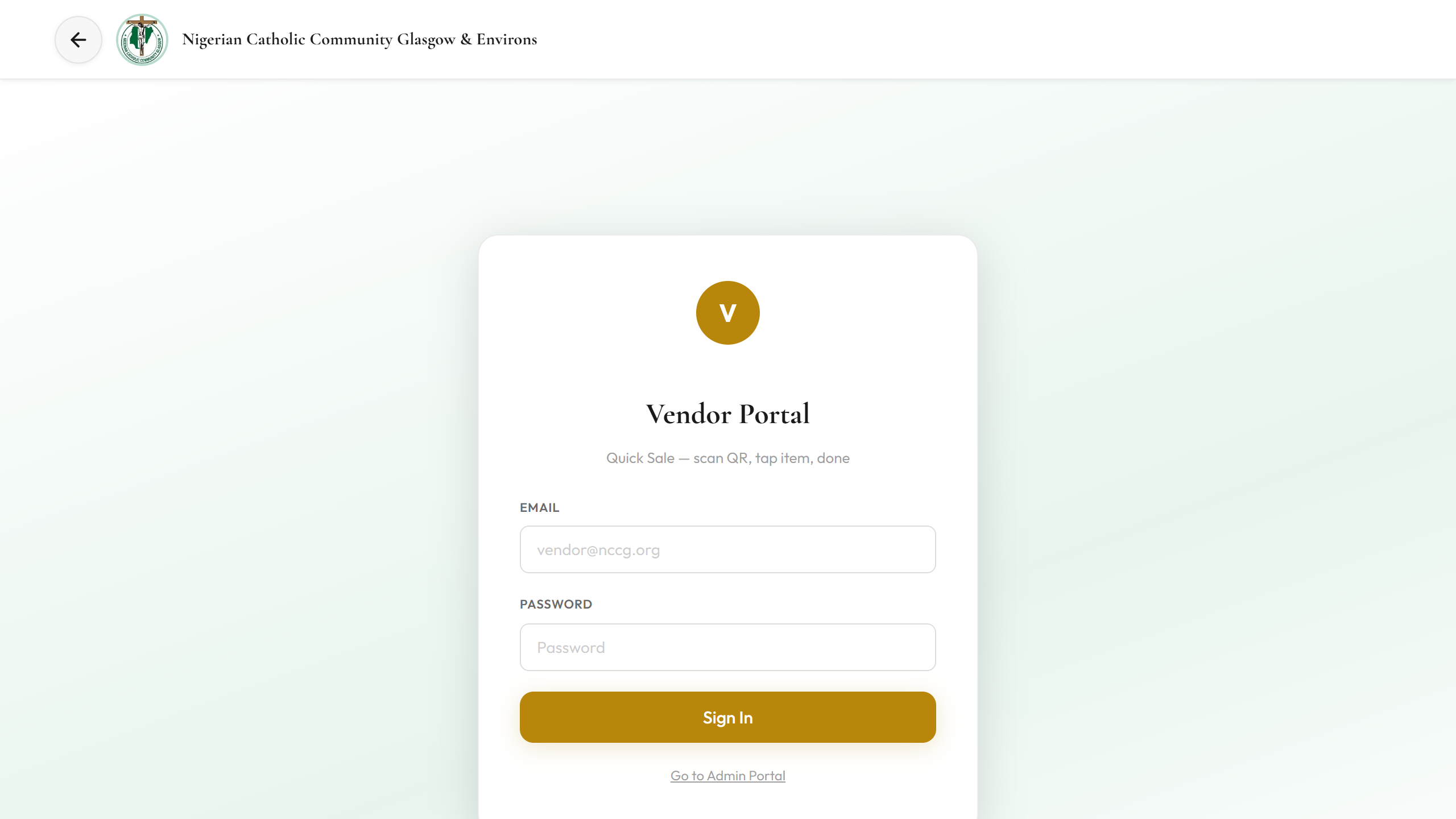
Go to vendor.html
Enter email and password → Sign In
You should see Quick Sale with a camera box
Figure 1 — Login screen
3. Every sale — do exactly this
#
You do
Customer does
1
Say: “Show me your QR please”
Opens email or voucher on phone
2
Point camera at their QR
Holds phone steady, screen bright
3
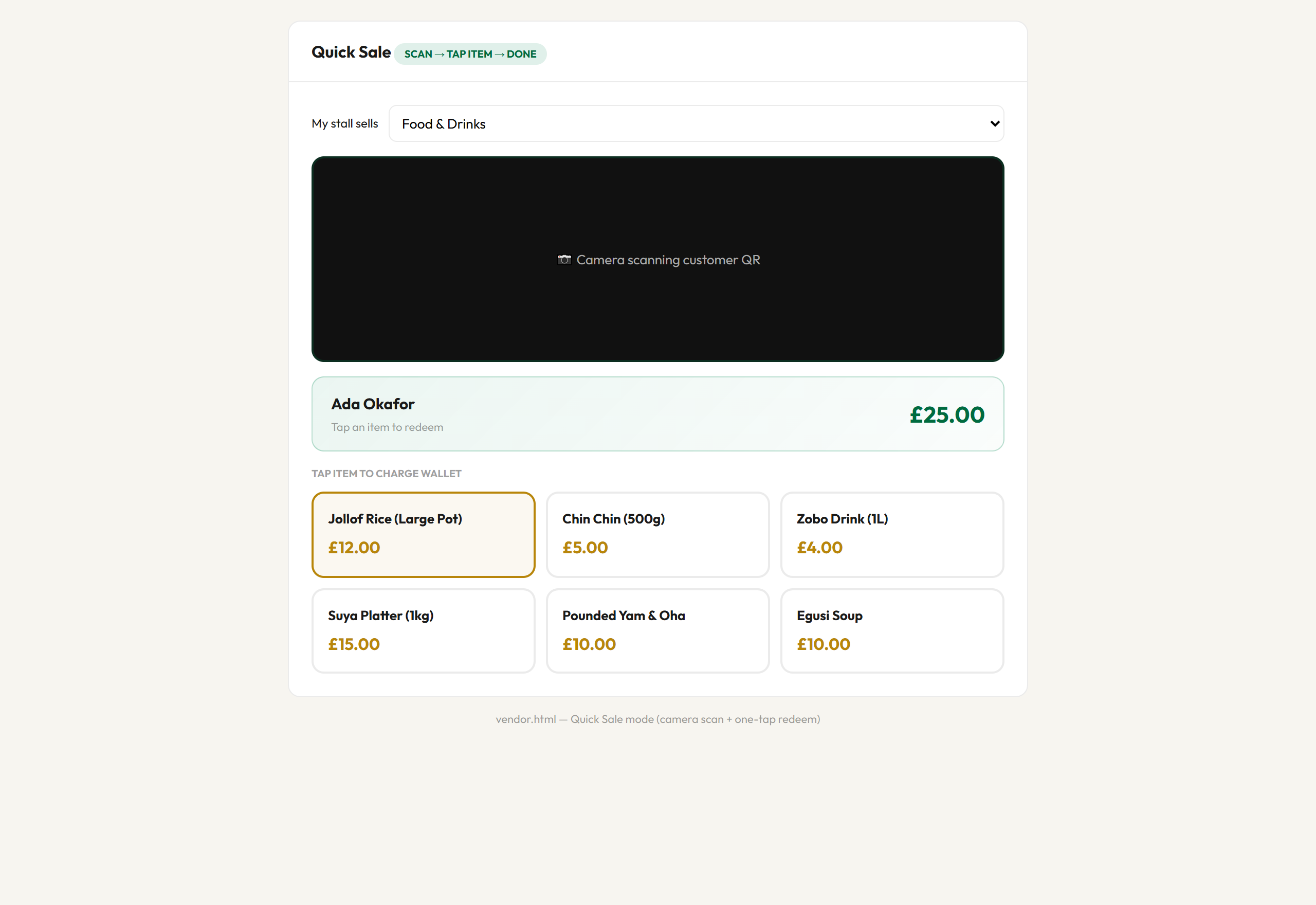
Check name and balance on green bar
Says what they want
4
Tap the item tile (e.g. Jollof £12)
—
5
Give goods when you see ✓ success message
Takes goods
6
Tap Next customer
—
Figure 2 — After scan: name, balance, item buttons
3b. Pre-paid items — customer already paid online
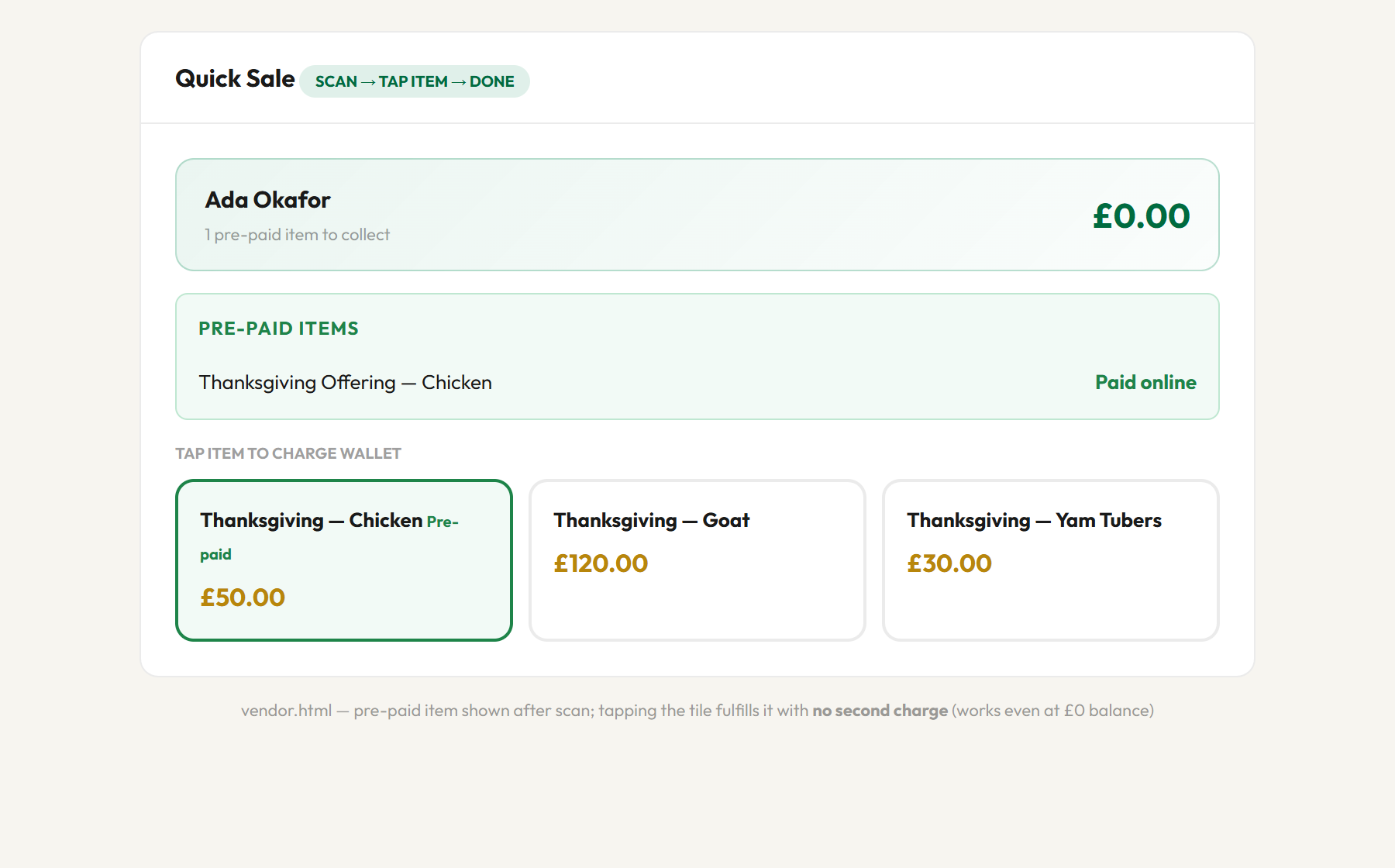
Some customers pay for items before the event using their wallet balance on the website. When you scan their QR you will see a green Pre-paid items box.
#
You do
1
Scan QR as normal
2
See green Pre-paid items list (e.g. “Thanksgiving Offering — Chicken · Paid online”)
3
Tap the matching item tile — it shows a green Pre-paid badge
4
You see ✓ pre-paid (fulfilled) — give goods. Nothing is deducted.
Figure 2b — Pre-paid items list. Balance can read £0.00 and the sale is still valid — the customer already paid.
IMPORTANT
A wallet showing £0.00 with a green Pre-paid list is a PAYING customer.
Tap the pre-paid tile and give the goods — do NOT send them away
and do NOT ask for cash.
4. Stall categories
My stall sells
Use for
Food & Drinks
Kitchen, bar, snacks
Fashion
Clothing, accessories
Crafts
Handmade goods
Thanksgiving
Thanksgiving offerings
All categories
Mixed stall only
5. If camera does not work
Tap Enter code manually
Customer gives you the long code from email
Paste → Look up
Tap item as normal
6. Messages — what they mean
Message
What to do
Name — £X.XX available
Good — tap item
Name — £X.XX available — N pre-paid item(s)
Check the green Pre-paid list; tap those tiles free of charge
✓ Item redeemed
Give goods
✓ Item — pre-paid (fulfilled)
Give goods — customer already paid online
Insufficient balance
Customer needs smaller item or admin desk top-up — no cash
Invalid wallet
Send customer to admin desk
Scan customer QR first
Scan before tapping item
7. Rules — read carefully
✓ DO
✗ DO NOT
Scan then tap correct item
Take cash for QR items
Press Next customer between people
Share your password
Sign out when you leave
Tap item before scanning
Send “no QR” customers to admin desk
Try to fix errors yourself
NCCGE STALL — QUICK SALE
1. Customer shows QR (paid online or at admin desk).
2. Scan → tap item → give goods.
3. Next customer.
NO CASH for QR items.